Slack app
Revenue AI for Slack
Your sales playbook stops being a document nobody opens and becomes the process your team runs every day, delivered as timely nudges, instant answers and continuous coaching right inside Slack. We build it around your sales process and run it for you, so there is no tool for your team to learn.
The problem it solves
Coaching where the work happens
Sales teams are trained once and then left alone. The playbook lives in a doc, the CRM holds the context, and the rep is in Slack. Taskbase closes that gap by putting the coaching where the work already happens.
A coach in every moment
Guidance arrives when it is needed rather than sitting in a document. Reps use AI where it performs best and sharpen their own judgement, empathy and communication where those still matter most.
Visibility that drives results
See who is mastering what, where the team is stuck, and what actually moves deals, then feed those signals back into the playbook.
Grounded in real context
Connected to the tools your team already uses, so every answer is grounded in real deal context instead of generic advice.
How it works in Slack
A coach in a direct message
Taskbase is a conversational agent. Everything happens in a direct message with the app; it does not post into your team’s channels.
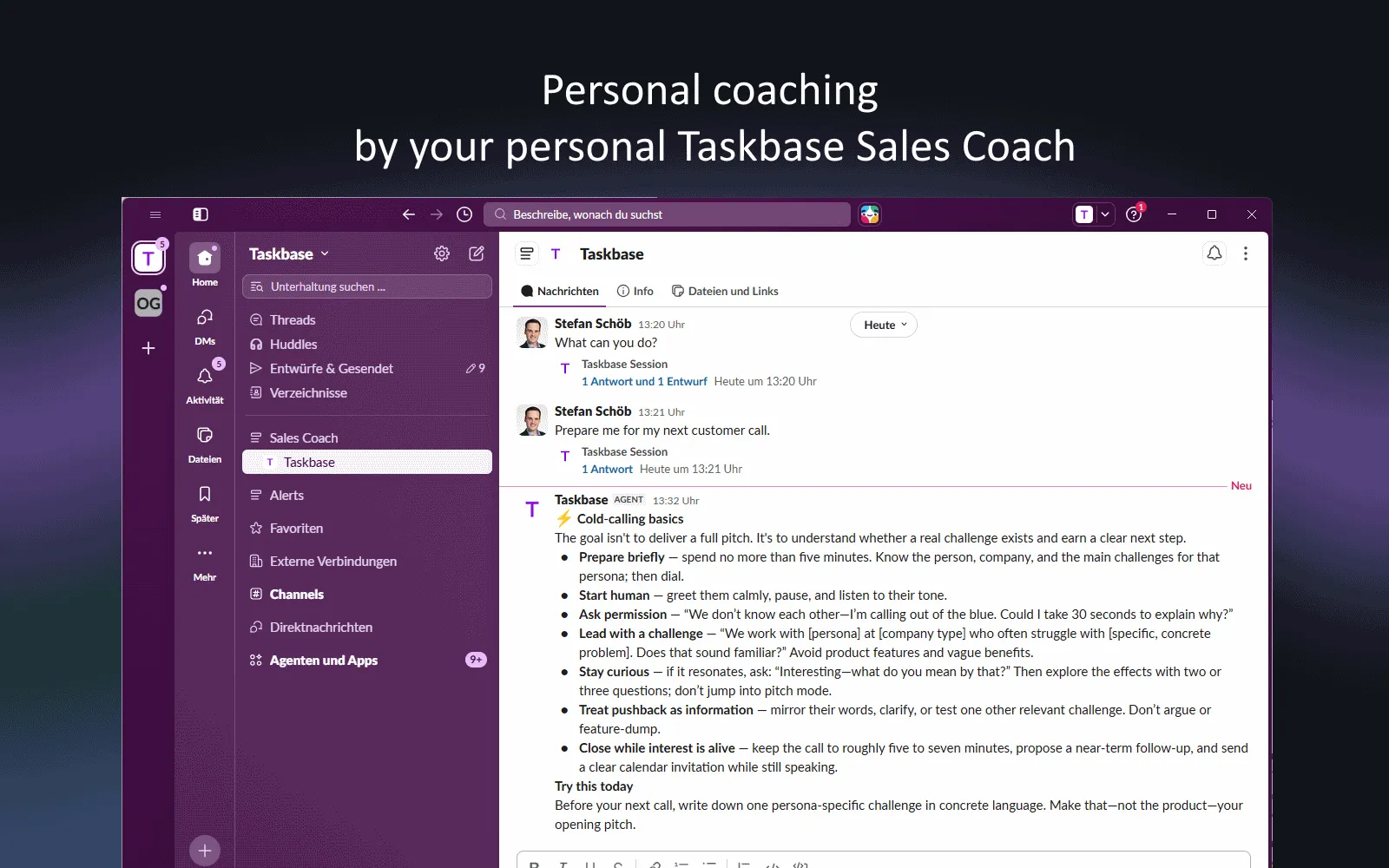
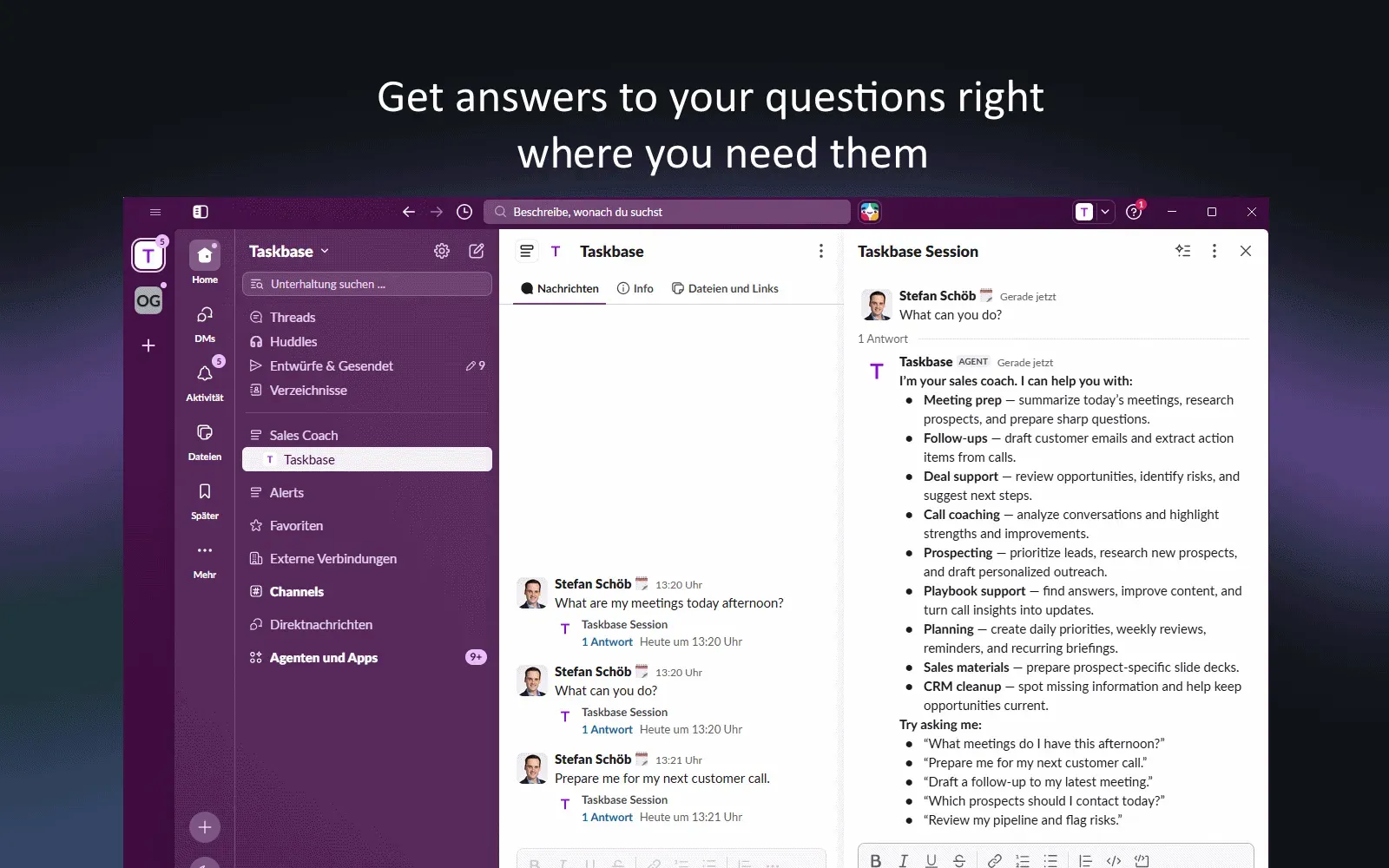
Ask your coach anything
Open the Taskbase conversation in Slack and ask a question in plain language. Answers are grounded in your team’s playbook and the deal context Taskbase has access to: no new tab, no copy-paste.
Get proactive coaching nudges
Taskbase spots a forgotten follow-up and drafts it. It surfaces a buying signal and the right angle to engage. Nudges arrive as a direct message, so nothing is broadcast to your team.
Keep the playbook alive
What works in the field feeds back into the playbook, so your strategy improves continuously instead of ageing in a folder.
Slack plan requirement
Slack’s AI agent experience is available on paid Slack plans. On free workspaces the Taskbase app still works as a standard direct-message assistant, with the agent side panel unavailable.
Getting started
How to install Taskbase in Slack
Taskbase is a managed service. Every coach is built around one specific sales team, so we start with a conversation rather than a configuration screen. There is no software to set up and no admin console to learn.
- 1
Get in touch
Leave us the basics: who you are and how to reach you. We come back to you within two business days to arrange a short call. Nothing to install yet, and no account to create.
- 2
We align on what your team needs
In a short alignment call we walk through how your team sells today: your playbook, where deals stall, who should be coached and what good looks like. You talk, we take it from there.
- 3
We build it and send your Add to Slack link
We turn what we agreed into a working coach, connect the tools your team already uses, and test it end to end. Then we email you a personal Add to Slack link. Someone who can install apps in your Slack workspace clicks it once and approves the permissions: the only technical step on your side.
- 4
We onboard your team
We give each person access, and Taskbase introduces itself to them with a direct message in Slack. They reply, and the coaching starts. We stay involved and keep tuning Taskbase as your playbook evolves.
Already working with Taskbase?
Email support@taskbase.com or your usual Taskbase contact and we will send you a fresh install link, or add and remove people for you.
After you install
Nothing to configure
Once the permissions are approved in Slack, here is what happens, and what to do if something looks wrong.
You get a direct message
Taskbase sends you a direct message in Slack confirming the workspace is connected. If you do not see it, check that the Taskbase app appears in your Slack sidebar under Apps, or email us.
We give your team access
We add the people you and your Taskbase contact agreed on, and each of them gets their own introduction from Taskbase in Slack. Nobody has to sign up or create a password. To add or remove someone later, just email us.
Changes and removal
Want the coaching adjusted, a new playbook loaded or someone removed? Email us and we handle it. You can remove Taskbase from your Slack workspace settings at any time; we then revoke the access token and stop processing data from that workspace.
Data and permissions
What Taskbase can access in Slack
The Taskbase app needs a few permissions to coach you in a direct message. If you also connect your own Slack account, Taskbase can look things up in Slack for you. Here is every permission, whether it is required or optional, and what it is for.
The Taskbase app
Granted once for the workspace when the app is installed. Taskbase works only in its direct message with each person.
Required
Send you coaching messages and replies in your direct-message conversation.
chat:writeOpen the direct-message conversation with you and read the thread you are talking in, so Taskbase has conversational context.
im:historyim:readim:writeMatch each person in Slack to Taskbase we set up for them, so coaching reaches the right person.
users:readusers:read.emailPower Slack’s agent experience: the thinking indicator, thread titles and suggested prompts.
assistant:writeRead files you attach to a message when you ask Taskbase about them.
files:read
Your own Slack account, if you connect it
Optional for each person. Connecting your account lets Taskbase look things up in Slack for you, with your own access: it sees only what you can see, and acts only when you ask it to.
RequiredGranted when you connect your account.
Search public channels, people and files when your question needs it, for example what was said about a deal.
search:read.publicsearch:read.userssearch:read.filesRead a public channel and its messages that you ask about.
channels:readchannels:historyLook up the people you mention, so Taskbase knows who is who.
users:readusers:read.emailOpen a file found in a search or a channel, when you ask about it.
files:readSend a message as you, only when you ask Taskbase to send it.
chat:writeAdd an emoji reaction as you, when you ask, including your workspace’s custom emoji.
reactions:writeemoji:read
OptionalSlack asks the first time Taskbase needs one; you can decline.
Extend search to private channels, group messages and direct messages you are part of.
search:read.privatesearch:read.mpimsearch:read.imRead a private channel, group message or direct message of yours that you ask about.
groups:readgroups:historympim:readmpim:historyim:historyStart a new channel or conversation, when you ask Taskbase to.
channels:writegroups:writeim:writempim:writeRead a canvas you point to, or write one for you, such as a call prep.
canvases:readcanvases:write
Support
Email support@taskbase.com and we reply within two business days. No account or sign-up needed to reach us.
Slack is a trademark of Salesforce, Inc. Taskbase is not affiliated with Salesforce. Privacy policy · Terms of service
What Taskbase does not do
The Taskbase app does not post into your team’s channels or read them. With your own account connected, Taskbase reads only what you can see, only to answer what you ask, and posts as you only when you tell it to. Taskbase does not use your Slack data to train large language models. Read the full privacy policy for what we collect, how long we keep it, and how to request access or deletion. Security and sub-processors are in the Trust Center.
About AI-generated responses
Taskbase uses large language models to generate its answers and suggestions. Responses may be inaccurate or incomplete and are intended to support your judgement, not replace it. Always review AI-generated content before acting on it or sending it to a customer. Taskbase does not use your Slack data to train large language models.